

Bulk URL Opener – Open Multiple URLs in One Click Free
URL Opener Tool: Allow Popups one time from browser if multiple tabs not opened (Check Screenshot Below)
Bulk URL Opener: Open Multiple URLs at Once in One Click
Table of Contents
Think about how many times in a single working day you open URLs one by one. You copy a link, paste it in a new tab, wait for it to load, go back, copy the next one, and repeat — ten, twenty, sometimes fifty times. For SEO professionals checking backlinks, researchers reviewing sources, or content creators scouting competitors, this habit quietly eats hours every week.
The Bulk URL Opener at AlphaSEOTools eliminates this entirely. Paste a list of URLs — one per line — click a button, and every single one opens in its own browser tab simultaneously. What used to take minutes of repetitive clicking now takes a single second.
Try it now: Bulk URL Opener
Video Guide: Watch How It Works
If you prefer a visual walkthrough before using the tool, watch the official step-by-step guide on YouTube:
| YouTube Video Guide: Bulk URL Opener – How to Use Watch here: https://youtu.be/ROl9n8CVEAM The video covers: how to paste URLs, allow popups, and open all tabs in one click. |
Important: You Must Allow Popups First
Before using the Bulk URL Opener for the first time, there is one critical step — you need to allow popups from the AlphaSEOTools website in your browser. This is a one-time setup. Without it, your browser will silently block the new tabs from opening.
| ⚠ If multiple tabs are not opening after clicking ‘Open All’, this is why. Your browser is blocking popups from alphaseotools.com. Follow the steps below for your browser to fix this in under 30 seconds. You only need to do this ONCE. After that, the tool works every time. |
How to Allow Popups – Step by Step for Every Browser
Follow the instructions for your specific browser below. Each takes less than 30 seconds.
Google Chrome
- Click the popup blocked icon in the address bar (looks like a small window with an X), OR go to the three-dot menu > Settings.
- Navigate to Privacy and Security > Site Settings > Pop-ups and redirects.
- Under ‘Allowed to send pop-ups and use redirects’, click Add.
- Type https://alphaseotools.com and click Add.
- Return to the Bulk URL Opener page and click ‘Open All’ again — your tabs will now open.
Mozilla Firefox
- When Firefox blocks a popup, a yellow notification bar appears at the top of the page. Click ‘Options’ or ‘Preferences’ in that bar.
- Select ‘Allow pop-ups for alphaseotools.com’.
- If the bar has already disappeared, go to Menu > Settings > Privacy & Security > Permissions > Block pop-up windows > Exceptions.
- Add https://alphaseotools.com and click Save Changes.
Microsoft Edge
- Click the three-dot menu (top right) > Settings > Cookies and site permissions.
- Scroll to Pop-ups and redirects and click it.
- Under ‘Allow’, click Add and enter https://alphaseotools.com.
- Click Add to confirm. The tool will now work without restriction.
Safari (Mac)
- In the menu bar, click Safari > Settings (or Preferences) > Websites.
- Select Pop-up Windows from the left sidebar.
- Find alphaseotools.com in the list (visit the page first if it does not appear) and set the permission to Allow.
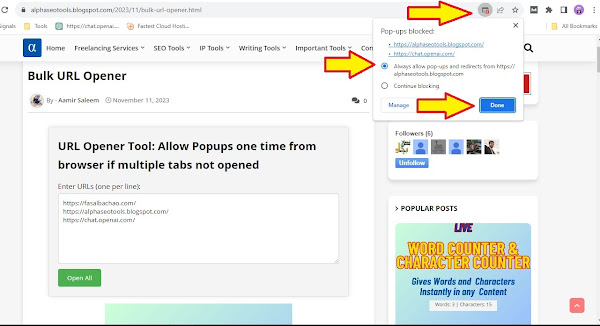
| Tip: A screenshot showing exactly where the popup permission appears in Chrome is available on the Bulk URL Opener tool page at AlphaSEOTools for visual reference. |
How to Use the Bulk URL Opener – Step by Step
Once popups are allowed, using the tool is completely straightforward:
- Open the Bulk URL Opener tool page on AlphaSEOTools.
- In the text area, paste your list of URLs — each URL must be on a separate line.
- Double-check that each URL begins with https:// or http:// to ensure it opens correctly.
- Click the ‘Open All’ button.
- Every URL in your list opens simultaneously in its own new browser tab.
That is the complete workflow. No extensions to install, no accounts to create, no file formats to worry about. Just paste, click, and all your tabs are ready.
How to Format Your URL List Correctly
The tool reads one URL per line. Here is what a correctly formatted list looks like:
| Correct format — one URL per line: https://www.example.com https://www.website2.com/page https://blog.example.org/article-title https://tools.alphaseotools.com Each line = one tab that opens. |
| Formatting Rule | Correct | Will Cause Issues |
| One URL per line | https://site1.com (Enter) https://site2.com | https://site1.com https://site2.com on the same line |
| Include the protocol | https://example.com | example.com (missing https://) |
| No trailing spaces | https://example.com | https://example.com (extra spaces after URL) |
| No blank lines between URLs | URL1 URL2 URL3 (no gaps) | URL1 (blank) URL2 causes empty tab |
| No commas or separators | https://site1.com | https://site1.com, https://site2.com |
Who Benefits Most from a Bulk URL Opener?
The tool is useful for anyone who regularly works with multiple web pages, but these are the users who see the biggest time savings:
SEO Professionals
SEO work involves opening dozens of URLs daily — backlink profiles, competitor pages, indexed URLs, search result links, and audit findings. Instead of clicking through each one manually, an SEO specialist can export a list of URLs from a tool like Google Search Console or Ahrefs, paste them into the Bulk URL Opener, and open all of them in one click. It pairs especially well with the Keyword Density Analyzer and Free Domain Extractor Tool for fast competitive research.
Content Creators and Bloggers
When researching a topic, writers often collect reference URLs throughout their reading. Instead of revisiting each one individually later, they can paste the entire list into the Bulk URL Opener and review all sources in parallel — without losing the flow of their writing session.
Digital Marketers
Marketers regularly check multiple campaign landing pages, ad destinations, social profiles, and analytics dashboards at the same time. Opening all monitoring URLs at the start of a work session takes one click instead of five minutes.
Researchers and Academics
Academic research involves reviewing multiple sources simultaneously to compare findings, cross-reference data, and verify claims. With a Bulk URL Opener, an entire bibliography of web sources can be opened in seconds rather than laboriously clicked through one at a time.
Web Developers and QA Testers
Developers testing multiple pages on a staging site, or QA testers checking a list of URLs for broken links or correct redirects, can open all target pages simultaneously rather than navigating to each one individually.
How Much Time Does It Actually Save?
The savings compound quickly. Here is a realistic estimate for common use cases:
| Task | URLs Opened | Manual Time (est.) | With Bulk URL Opener | Time Saved |
| Daily news monitoring | 10 URLs | ~3 minutes | ~5 seconds | ~2.5 min/day |
| SEO competitor check | 20 URLs | ~6 minutes | ~5 seconds | ~5.5 min |
| Backlink audit review | 50 URLs | ~15 minutes | ~10 seconds | ~14.5 min |
| Research source review | 30 URLs | ~9 minutes | ~5 seconds | ~8.5 min |
| QA page testing | 40 URLs | ~12 minutes | ~8 seconds | ~11.5 min |
For an SEO professional opening 50+ URLs daily, the tool saves a conservative 30–60 minutes every single working day — adding up to several hours each week.
Practical Use Case Examples
Opening Google Search Results for Research
Search for your topic, collect the top 10 or 20 result URLs, paste them into the Bulk URL Opener, and open all of them at once. You can then read through all sources in parallel without going back and forth between the search results page.
Checking Backlinks from a Disavow File
If you have a disavow file or a list of backlink domains from Google Search Console, you can use the Free Domain Extractor Tool to extract clean domain URLs, then open them all in the Bulk URL Opener to review each site before deciding whether to disavow.
Monitoring Your Guest Post Links
If you publish guest posts across multiple sites, keeping a list of those article URLs and opening them all periodically to check that your links are still live is a smart habit. The Bulk URL Opener makes this a 10-second task rather than a 10-minute one. See also: Premium Guest Posting Services if you want help building your backlink profile.
Opening Social Media Profiles for Cross-Platform Review
Marketers managing multiple brand profiles across Facebook, LinkedIn, Instagram, Twitter/X, and YouTube can keep a saved list of all profile URLs and open them simultaneously each morning for a quick overview of notifications and recent activity.
Browser Performance Tips When Opening Many Tabs
Opening 20, 30, or 50 tabs at once is perfectly safe, but here are a few tips to keep your browser running smoothly:
- Open in batches if needed — If you regularly open 50+ URLs, consider splitting them into two batches of 25 to prevent your browser from slowing down on older hardware.
- Use Tab Suspend extensions — Browser extensions like The Great Suspender (Chrome) automatically pause inactive tabs to free up RAM, which helps significantly when many tabs are open.
- Close tabs as you finish — Rather than letting tabs accumulate, close each one after reviewing it to keep your browser responsive.
- Use a modern browser — Chrome, Edge, Firefox, and Safari all handle bulk tab loading well. Older browser versions may struggle with very large batches.
For official guidance on managing browser tabs and memory, the Google Chrome Help Center provides up-to-date tips on keeping your browser fast.
Frequently Asked Questions
Why are my tabs not opening after I click ‘Open All’?
This is almost always a popup blocker issue. Your browser is preventing the tool from opening new tabs. Follow the step-by-step instructions in the ‘How to Allow Popups’ section above for your specific browser. This fix takes less than 30 seconds and only needs to be done once.
Is there a limit to how many URLs I can open at once?
The tool itself does not impose a strict limit. In practice, opening very large numbers of tabs simultaneously (100+) may cause your browser to slow down depending on your computer’s RAM and processor. For most everyday tasks of 10–50 URLs, the tool works instantly without any issues.
Do the URLs need to include https://?
Yes. Each URL should begin with https:// or http:// for the browser to open it correctly as a web address. A bare domain like example.com without the protocol may not open in some browsers, or may be misinterpreted.
Does it work on mobile and tablet?
The tool is browser-based and loads on any device. However, opening 10–20 tabs simultaneously on a smartphone browser may strain the device’s memory. For heavy use, a desktop or laptop browser is recommended for the best experience.
Is the Bulk URL Opener free to use?
Yes, completely free. No account, no subscription, no limit on uses. Open the page and start using it immediately.
Conclusion: One Click, All Your Tabs
The Bulk URL Opener is one of those tools that feels almost too simple to be impactful — until you use it for the first time and realise how much time you were spending on repetitive tab-opening. For SEO professionals, content creators, digital marketers, and researchers, it removes one of the most common friction points in an online workflow.
Set up popup permissions once, paste your URLs, click Open All. That is the entire process.