Online Text Converter – 40+ Free Text Tools in One Place
Online Text Converter – Text Transformation
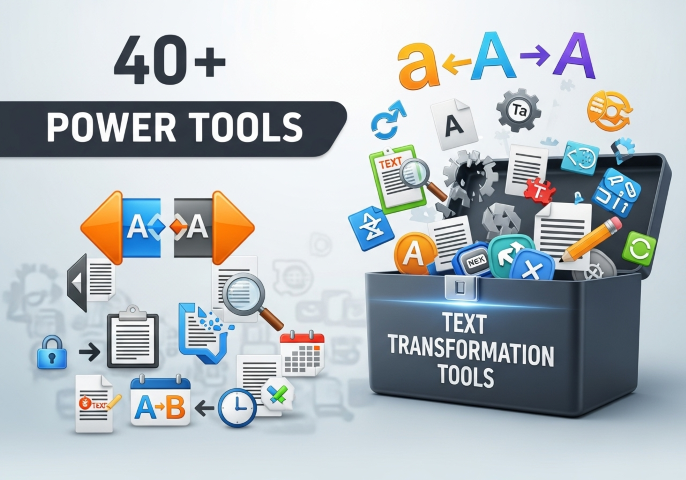
Transform your text with 40+ powerful tools – Perfect for WordPress & Social Media
Tool Information
Select a tool to see its description
📥 Input Text
📤 Output Text
ℹ️ About This Tool
- 40+ Text Transformations – Reverse, flip, convert cases, generate fancy fonts and more!
- Real-time Processing – Instant text transformation with live character counts
- WordPress Ready – Copy this code directly into WordPress Custom HTML block
- Social Media Perfect – Create eye-catching text for Instagram, Facebook, Twitter, Discord
- 100% Free & No Ads – All transformations work offline in your browser
- Copy with One Click – Easy copy-to-clipboard functionality
Complete Video Guide for Text Transformation Tools
Online Text Converter – 40+ Free Text Transformation Tools in One Place
Table of Contents
Whether you need to convert text to uppercase for a heading, generate fancy fonts for an Instagram bio, reverse a string for a coding project, or encode a message in Morse code for fun — you no longer need a different tool for each task.
The Text Transformation Toolkit at AlphaSEOTools brings 40+ online text converter tools into a single, clean page. Select a transformation from the dropdown, paste or type your text, and the result appears instantly. No installs, no ads, no account required.
Use all 40+ tools here: Online Text Converter
What Makes This Online Text Converter Different?
Most text tools online give you one function per page — a separate site for uppercase conversion, another for fancy text, another for Morse code. This toolkit removes that friction entirely. All 40+ transformations live under one roof, with a single input box and instant output.
| Key features at a glance: 40+ text transformations in a single tool Real-time output — results update as you type Live character, word, and line counter built in One-click copy to clipboard Swap input and output with one button Works entirely in your browser — no data is sent to any server 100% free with no ads Perfect for WordPress, social media, and coding use cases |
Complete List of All 40+ Online Text Converter Tools
The toolkit organises all tools into logical groups. Here is every tool available, with a description of what it does:
Group 1: Reverse & Flip Tools
| Tool Name | What It Does | Example Output |
| Reverse Text | Reverses every character in the entire text backwards | “Hello World” → “dlroW olleH” |
| Reverse Word Order | Keeps words intact but reverses their sequence | “Hello World” → “World Hello” |
| Reverse Each Word’s Letters | Reverses the letters inside each word individually | “Hello World” → “olleH dlroW” |
| Flip Text (Upside Down) | Rotates characters so the text appears upside down | “Hello” → “ollǝH” (flipped) |
| Mirror Text | Creates a horizontally mirrored reflection of the text | “Hello” → mirror image |
Group 2: Text Case Converter
The text case converter group is one of the most used sections — essential for writers, developers, and content creators who need text formatted consistently.
| Tool Name | What It Does | Best Used For |
| UPPERCASE | Converts all letters to capitals | Headings, acronyms, emphasis |
| lowercase | Converts all letters to small case | Coding variables, normalising input |
| Title Case | Capitalises the first letter of every word | Blog titles, headings, names |
| Sentence case | Capitalises only the first letter of each sentence | Paragraphs, body text correction |
| tOGGLE cASE | Inverts the case of every character | Memes, stylised social media text |
Group 3: Fancy Text Generator & Unicode Fonts
The fancy text generator tools use Unicode character sets to produce styled text that can be copied and pasted anywhere — Instagram bios, Twitter/X posts, Discord usernames, Facebook captions, and more. These are not fonts in the traditional sense; they are Unicode symbols that look like styled letters.
| Tool Name | Output Style | Popular Use Case |
| Bold Text | 𝗕𝗼𝗹𝗱 𝗹𝗼𝗼𝗸𝗶𝗻𝗴 𝘁𝗲𝘅𝘁 | Instagram captions, Discord messages |
| Italic Text | 𝘐𝘵𝘢𝘭𝘪𝘤 𝘴𝘵𝘺𝘭𝘦𝘥 𝘵𝘦𝘹𝘵 | Stylised quotes, social bios |
| Bold Italic | 𝙗𝙤𝙡𝙙 𝙞𝙩𝙖𝙡𝙞𝙘 𝙘𝙤𝙢𝙗𝙞𝙣𝙚𝙙 | Strong emphasis on social platforms |
| Cursive Text | 𝓒𝓾𝓻𝓼𝓲𝓿𝓮 𝓼𝓽𝔂𝓵𝓮 | Elegant bios, artistic captions |
| Gothic Text | 𝔊𝔬𝔱𝔥𝔦𝔠 𝔰𝔱𝔶𝔩𝔢 | Gaming profiles, creative branding |
| Monospace | 𝙼𝚘𝚗𝚘𝚜𝚙𝚊𝚌𝚎 𝚜𝚝𝚢𝚕𝚎 | Code snippets, technical aesthetic |
| Bubble Text | Ⓑⓤⓑⓑⓛⓔ ⓣⓔⓧⓣ | Fun social media posts, usernames |
| Square Text | 🅂🅀🅄🄰🅁🄴 🅃🄴🅇🅃 | Bold visual impact on social platforms |
Fancy text using Unicode characters works on virtually all modern platforms. For a technical explanation of how Unicode works, the Unicode Consortium’s official character database is the authoritative reference used by developers worldwide.
Group 4: Text Styling & Decoration
| Tool Name | What It Does | Example |
| Strikethrough | Draws a horizontal line through each character | S̶t̶r̶i̶k̶e̶t̶h̶r̶o̶u̶g̶h̶ |
| Underline | Adds a single underline beneath each character | U̲n̲d̲e̲r̲l̲i̲n̲e̲d̲ |
| Double Underline | Adds a double underline beneath each character | D̳o̳u̳b̳l̳e̳ ̳L̳i̳n̳e̳ |
| Slash Text | Inserts a forward slash between every character | S/l/a/s/h/e/d |
| Small Caps | Converts lowercase to small capital Unicode letters | ꜱᴍᴀʟʟ ᴄᴀᴘꜱ |
| Superscript | Converts text to superscript Unicode characters | ˢᵘᵖᵉʳˢᶜʳⁱᵖᵗ |
| Subscript | Converts text to subscript Unicode characters | ₛᵤbₛcᵣᵢₚₜ |
Group 5: Glitch, Aesthetic & Creative Text
These tools produce visually striking text styles popular in creative communities, gaming, and social media aesthetics.
| Tool Name | What It Does | Best Used For |
| Zalgo Text | Adds chaotic stacking Unicode characters above and below letters | Horror aesthetics, cursed text memes |
| Glitch Text | Creates a digital glitch-style visual effect on the text | Gaming profiles, cyberpunk aesthetics |
| Cursed Text | Combines random diacritical marks for a distorted look | Creative art, social media shock effect |
| Vaporwave Text | Converts to full-width aesthetic characters with spacing | Aesthetic social media posts |
| Wide Text | Adds wide spacing between each character | Visual impact on captions and bios |
| Aesthetic Text | Full-width character style for a clean spaced look | Instagram and Twitter aesthetics |
Group 6: Text Utility & Cleanup Tools
These tools handle practical text editing and formatting tasks that writers, developers, and data processors need regularly.
| Tool Name | What It Does | Who Uses It Most |
| Text Repeater | Repeats the input text a set number of times | Testing, placeholder content, pattern creation |
| Remove Spaces | Strips all whitespace from the text | Data cleaning, coding, string normalisation |
| Remove Line Breaks | Converts multi-line text into a single continuous line | Copying content from PDFs, cleaning pasted text |
| Alphabetize Lines | Sorts all lines in the text alphabetically A to Z | Organising lists, glossaries, sorted data |
| Shuffle Words | Randomly rearranges all words in the text | Randomisation, creative writing prompts |
| Remove Duplicate Lines | Deletes any repeated lines from a list | Cleaning scraped data, deduplicating URLs |
Group 7: Encoding & Cipher Tools
These tools convert plain text into coded or encoded formats — useful for developers, students, puzzle creators, and anyone exploring cryptography.
| Tool Name | What It Does | Example |
| Morse Code | Converts text to International Morse Code dots and dashes | “SOS” → “… — …” |
| Binary Code | Converts each character to its 8-bit binary representation | “Hi” → “01001000 01101001” |
| Hexadecimal Code | Converts text to hexadecimal values | “Hello” → “48 65 6C 6C 6F” |
| ROT13 Cipher | Shifts each letter 13 positions in the alphabet (reversible) | “Hello” → “Uryyb” |
For a deeper understanding of how Morse Code and classic ciphers work historically, the Britannica guide to cryptography provides clear, accessible explanations.
Who Is This Online Text Converter For?
The toolkit serves a surprisingly wide range of users because text is fundamental to almost every kind of digital work:
| User Type | How They Use It | Most Used Tools |
| Bloggers & Writers | Fix text case from pasted content, clean up line breaks | Title Case, Sentence Case, Remove Line Breaks |
| Social Media Managers | Create eye-catching styled text for posts and bios | Fancy Text Generator, Bold, Cursive, Aesthetic |
| Developers & Coders | Encode strings, test inputs, convert to binary/hex | Binary, Hexadecimal, ROT13, Remove Spaces |
| Students & Academics | Learn encoding, convert data formats, format citations | Morse Code, Binary, Alphabetize Lines |
| Content Creators | Style text for Discord, YouTube, Instagram profiles | Bubble Text, Gothic, Vaporwave, Bold Italic |
| SEO Professionals | Clean and reformat scraped or pasted text quickly | Uppercase, Remove Duplicates, Sentence Case |
| Data Analysts | Normalise lists, remove duplicates, sort data | Remove Duplicates, Alphabetize, Remove Spaces |
Using the Text Converter for WordPress and Social Media
WordPress Content
When pasting text from Google Docs, PDFs, or emails into WordPress, unwanted line breaks, inconsistent capitalisation, and stray spaces often come along for the ride. Using the Remove Line Breaks, Sentence Case, and Remove Spaces tools before pasting into the WordPress editor saves significant cleanup time in the Gutenberg or Classic editor.
Instagram & Facebook Bios and Captions
Instagram does not support custom fonts natively — but Unicode-based fancy text renders perfectly because the platform displays the characters as-is. Generating your bio or caption in Cursive, Gothic, Bold, or Aesthetic style using this toolkit, then copying and pasting directly into Instagram, is one of the quickest ways to make your profile stand out without any design tools.
Twitter / X and Discord
Both platforms render Unicode characters fully. Discord usernames, server names, and channel descriptions styled with Bubble Text, Square Text, or Wide Text immediately look distinctive in a crowded server list. Twitter/X bios styled with Bold or Monospace text stand out in profile search results.
How to Use the Online Text Converter Toolkit – Step by Step
- Open the tool page at AlphaSEOTools.
- From the dropdown menu, select the transformation you want to apply — tools are grouped by category for easy navigation.
- Type or paste your text into the input box on the left. The character, word, and line count updates in real time.
- Your transformed text appears instantly in the output box on the right.
- Click ‘Copy Output’ to copy the result to your clipboard in one click.
- Use ‘Swap Input/Output’ to apply a second transformation to the result, chaining effects together.
- Click ‘Clear All’ to reset both boxes and start fresh.
| Pro tip: Use Swap Input/Output to chain transformations. Example: Convert to UPPERCASE first, then swap and apply Wide Text to get wide-spaced uppercase text in a single workflow. |
Related Writer Tools on AlphaSEOTools
If you work regularly with text, these tools from the same Writer Tools category complement the Text Transformation Toolkit:
- Free Word Counter Online — Count words, characters, sentences and paragraphs instantly after transforming your text.
- Reverse Text Generator — Dedicated reverse and mirror text tool with additional options beyond the toolkit.
- Text to Speech Reader — Convert any transformed text to audio and download as MP3.
- Voice to Text Converter — Dictate text by voice then run it through any of the 40+ transformation tools.
Frequently Asked Questions
Will fancy text paste correctly into Instagram, Discord, and Twitter?
Yes. The fancy text tools use Unicode characters — not custom fonts — which means they are plain text characters that render on any platform that supports Unicode, including Instagram, Twitter/X, Discord, Facebook, WhatsApp, and most website builders. Simply copy and paste.
Does the tool store or share the text I enter?
No. All transformations happen entirely within your browser using JavaScript. No text you enter is sent to any server, stored, or shared. This makes the tool safe to use even with sensitive or confidential content.
Can I apply more than one transformation to the same text?
Yes — use the Swap Input/Output button after your first transformation. This moves the output back into the input box, where you can select a second transformation and apply it on top of the first result.
What is the difference between Reverse Text and Reverse Word Order?
Reverse Text flips every individual character in the entire string backwards — the last character becomes the first. Reverse Word Order keeps each word intact but reverses the sequence of words. For example, ‘Hello World’ becomes ‘dlroW olleH’ with Reverse Text, but ‘World Hello’ with Reverse Word Order.
What does ROT13 do and is it a real cipher?
ROT13 is a simple substitution cipher that shifts every letter 13 positions forward in the alphabet. Because the alphabet has 26 letters, applying ROT13 twice returns the original text — making it its own inverse. It is commonly used online to hide spoilers or punchlines in forum posts and is also a classic exercise in introductory cryptography.
Conclusion: Every Text Conversion You Need, One Tool
From practical text case conversion to social media fancy text generation to binary encoding — the Online Text Converter Toolkit covers a remarkably wide range of real-world needs in a single, fast, and completely free tool. Whether you are a writer cleaning up pasted content, a social media manager styling a bio, or a developer encoding a string, there is a tool in this collection built exactly for that task.