
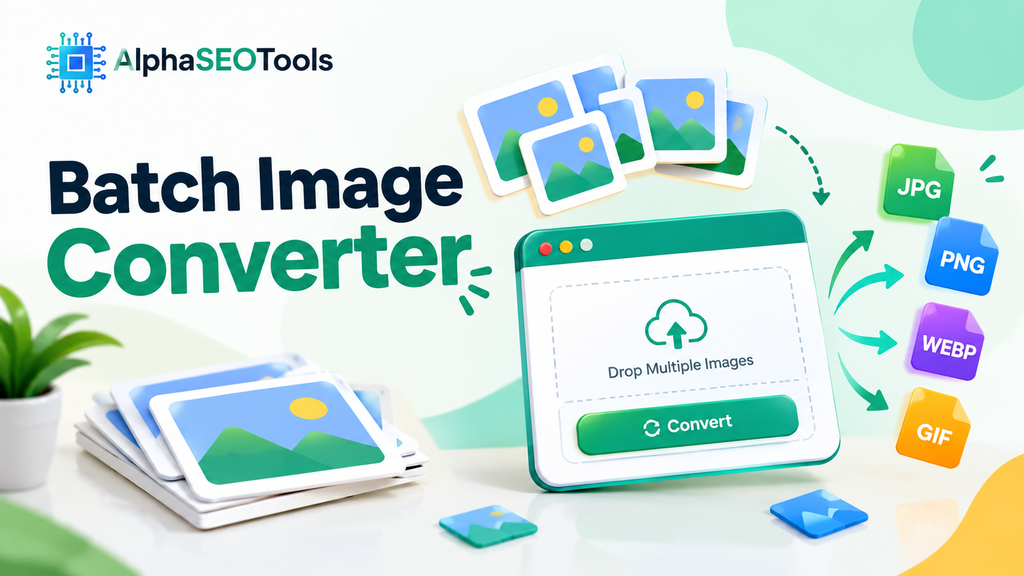
Drag & drop multiple images here, or click to browse
Supports JPG, PNG, WEBP, BMP, ICO · add as many images as you like · converted entirely in your browser
Queries Discussed Below
Guide & Facts;
If you have ever needed to change the format of dozens of photos before uploading them to a website, an online store, or a client folder, you already know how tedious that job can be. This is exactly the problem a Free Batch Image Converter is built to solve. Instead of opening each picture one at a time in an editing program, this kind of tool lets you select an entire folder of images, choose one output format, and convert every file in a single pass.
This guide walks through what a Free Batch Image Converter actually does, how it works behind the scenes, when you should reach for one, and how to get the best results from the free tool on Alpha SEO Tools. Along the way we will also cover the questions people most commonly type into Google when searching for this kind of utility, so you can find the answer you need quickly. Building a well-organized website often relies on visual consistency, much like how a structured content pillar depends on high-quality supporting assets.
What Is a Free Batch Image Converter?
A Free Batch Image Converter is a utility that changes the file format of many images simultaneously rather than one image at a time. Photographers, online sellers, bloggers, and web developers all run into the same situation: a camera, phone, or design tool produces images in a format that isn’t right for the next step, whether that’s a website upload, an email attachment limit, or a marketplace listing requirement.
Rather than manually opening each photo in Paint, Photoshop, or Preview and exporting it individually, this tool processes the whole batch together. You upload your files, pick the target format such as JPG, PNG, WEBP, or BMP, and it handles the rest. The result is the same image content, saved in a new container format, with far less manual effort.
Why People Search for This Tool
There are a handful of very common reasons someone ends up looking for a Free Batch Image Converter, and understanding the search intent behind the term helps explain why so many people rely on it:
- They exported photos from a phone or camera in HEIC or a similar format and need standard JPGs.
- They are preparing product photos for an online store and every image must be the same file type.
- They received a batch of PNG screenshots that need to become smaller, web-friendly JPG or WEBP files.
- They need older BMP or TIFF files converted into something modern browsers and apps can display.
- They simply want to save time instead of converting images one by one.
Recognizing this demand is useful because it shows the need isn’t for a single-image tool, but specifically for something that can handle many files together, which is precisely what a Free Batch Image Converter is designed for.
How the Tool on Alpha SEO Tools Works
The free Free Batch Image Converter available on Alpha SEO Tools runs entirely inside your browser. Nothing is uploaded to a server, which means your photos never leave your device during conversion. Here is what happens step by step:
- You drag and drop, or click to browse, one or more image files into the upload zone.
- The tool reads each image and lists it in a queue with its file name and size.
- You choose your target format from the dropdown: PNG, JPG, WEBP, or BMP.
- When you click Convert All, it processes each file using the browser’s canvas engine, redrawing the pixels and exporting them in the new format. If you need to embed these visual assets directly into CSS code later, a Base64 converter can be handy.
- Once a file finishes, a Download link appears next to it, and you can also use Download All to save every converted image in sequence.
Because the entire process happens locally in the browser, there is no waiting for uploads or downloads to a remote server, and no risk of your images being stored somewhere you don’t control. This local-processing approach is one of the biggest advantages of this particular Free Batch Image Converter compared to older desktop software that requires installation.
Step-by-Step: How to Use the Free Batch Image Converter
Using the tool takes only a few moments even with a large batch of photos.
- Step 1: Open the tool page and look for the upload zone near the top.
- Step 2: Drag your images into the box, or click it to open your file browser and select multiple images at once. You can add JPG, PNG, WEBP, GIF, and BMP files.
- Step 3: Review the queue. Every file you added shows up with its name and size so you can confirm nothing important was left out. (If you are mocking up layout designs before your images are ready, pairing them with a Lorem Ipsum generator helps fill out the structure).
- Step 4: Pick the format you want everything converted to. If you’re preparing images for a website, WEBP or JPG usually gives you the smallest file size. If you need maximum quality with transparency, PNG is the better choice.
- Step 5: Click Convert All and let the tool do its work. A short loading indicator will show while each file is processed.
- Step 6: Download your files individually, or use the Download All button to grab everything in one go.
- Step 7: If you added a file by mistake, remove it from the queue with the small remove button, or use Clear All to start over.
Supported Formats
This tool currently supports conversion between the four most widely used image formats on the web. Below is an overview of each supported target format and its primary strengths:
| Format | Best Used For | Key Characteristics |
| JPG (JPEG) | General Photography | The most common photo format, ideal for photographs where small file size matters more than transparency. |
| PNG | Graphics, Logos & Screenshots | Best for graphics, logos, and screenshots that need transparency or sharp edges. |
| WEBP | Modern Web Publishing | A modern format that typically produces smaller files than JPG or PNG at similar visual quality. |
| BMP | Legacy Software & Printing | An older, uncompressed format still used by some legacy software and printing workflows. |
Being able to move freely between these four formats with one tool means you rarely need a separate application no matter which format your original files came in or which one your destination requires.
Free Batch Image Converter vs Converting Images One by One
It’s worth comparing the time difference directly. Converting a single image manually usually means opening an editor, exporting the file, renaming it, and repeating that sequence for every photo. For ten images, that might take a few minutes. For a hundred images, that same manual process can easily eat up an entire afternoon.
A tool built for batch conversion removes that repetition. You perform the setup steps exactly once, and it applies the same format conversion to every file in your queue. This is especially valuable for:
- Online sellers uploading dozens of product photos to a marketplace.
- Bloggers and content creators preparing an image gallery for a post.
- Real estate agents converting large batches of listing photos.
- Developers or designers standardizing an asset library before deployment.
In every one of these situations, this kind of converter turns a repetitive manual chore into a single action.
Is It Safe to Use?
A common concern when using any online image tool is privacy. Because this Free Batch Image Converter performs every conversion directly in your browser using canvas rendering, your files are never transmitted to an external server. That means there is no upload step, no server-side storage, and no third party gaining access to your photos. Once you close or refresh the tab, the converted files and their temporary browser links are gone unless you’ve already downloaded them.
This local-first approach is a meaningful reason many people choose a browser-based converter over uploading sensitive photos to an unknown cloud service.
Free Batch Image Converter and Website Performance
Batch Image Converter by alphaseotools.com
If you run a website, choosing the right image format at scale can noticeably affect performance. Large, uncompressed images slow down page load times, which in turn affects user experience and search rankings. Running your visual assets through a Free Batch Image Converter before uploading them is a simple way to standardize file sizes and formats across an entire site.
This ties into a few broader technical SEO ideas worth understanding. Pages weighed down by oversized, unoptimized images are a common contributor to content decay, where a page’s rankings and traffic slowly decline over time even though the written content hasn’t changed. Keeping your media library lean with this tool is a small but genuine part of preventing that decline.
Image-heavy sites can also run into crawl budget issues, since search engine bots spend part of their allotted time processing large media files instead of indexing new pages. Reducing file sizes with this tool, alongside good site structure, helps search engines crawl more efficiently.
Finally, if you’re organizing a website’s media and content strategy more broadly, it helps to understand how supporting media connects back to a pillar page, since a well-structured site architecture relies on consistently formatted, fast-loading visuals throughout.
Other Free Tools That Pair Well With This One
Alpha SEO Tools offers several other free utilities that are useful alongside this one, particularly if you’re preparing content or web assets:
- A generator for quickly filling design mockups with placeholder text while your converted images are being finalized.
- A conversion tool for developers who need to embed converted images directly into HTML or CSS instead of linking to separate files.
Using these tools together with the Free Batch Image Converter can speed up an entire content or design workflow, not just the image formatting step.
Frequently Asked Questions About the Free Batch Image Converter
What does a Free Batch Image Converter actually do?
It changes the file format of multiple images at the same time, so you don’t have to convert each photo individually.
Which image formats can I convert between?
The tool supports JPG, PNG, WEBP, and BMP, covering the formats most people need for web, print, and general use.
Why would I choose WEBP over JPG or PNG?
WEBP files are usually smaller at a similar visual quality, which makes pages load faster, especially useful if you’re preparing images for a website.
Is it safe to convert personal or private photos with this tool?
Yes. Since the conversion happens locally in your browser rather than on a remote server, your images are never uploaded anywhere.
Will converting images reduce their quality?
JPG and WEBP use compression, so very high compression settings can slightly reduce quality, but the default settings in this tool are tuned to keep images looking sharp while still reducing file size.
Final Thoughts on Using a Free Batch Image Converter
Whether you’re managing a handful of family photos or standardizing hundreds of product images for an online store, a Free Batch Image Converter removes the most repetitive part of the process. Instead of exporting files one at a time, you upload everything once, choose your target format, and let the tool handle the conversion in the background.
The free tool on Alpha SEO Tools is built to be fast, private, and simple enough that anyone can use it without a learning curve, and it fits naturally alongside the site’s other free utilities for content creators, developers, and marketers who want to move faster without sacrificing quality.