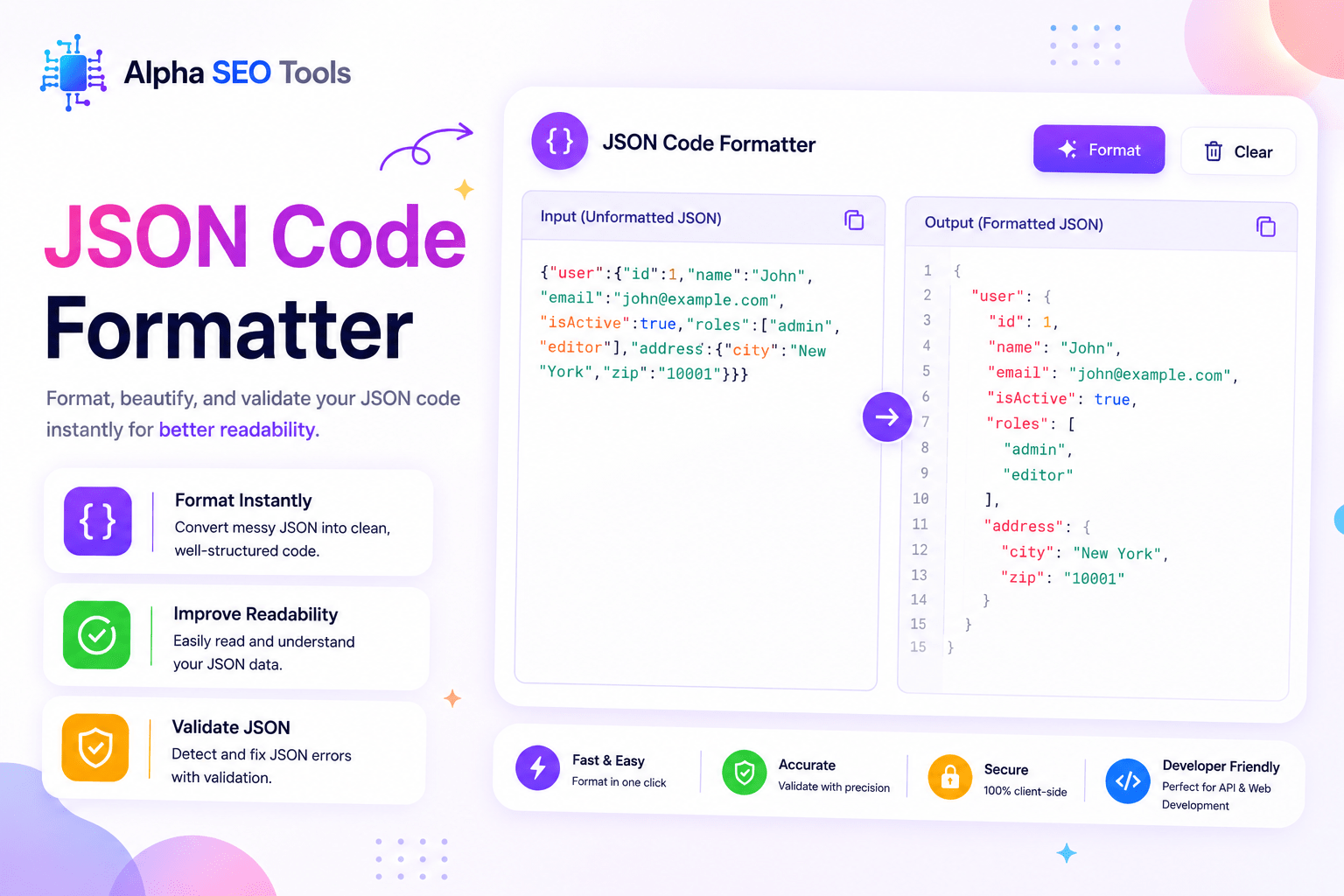
JSON Code Formatter
Formatted JSON will appear here...
JSON Code Formatter: The Complete Guide to Formatting, Validating and Cleaning JSON
Published on AlphaSEOTools.com | Keyword: JSON Code Formatter | ~1,600 words
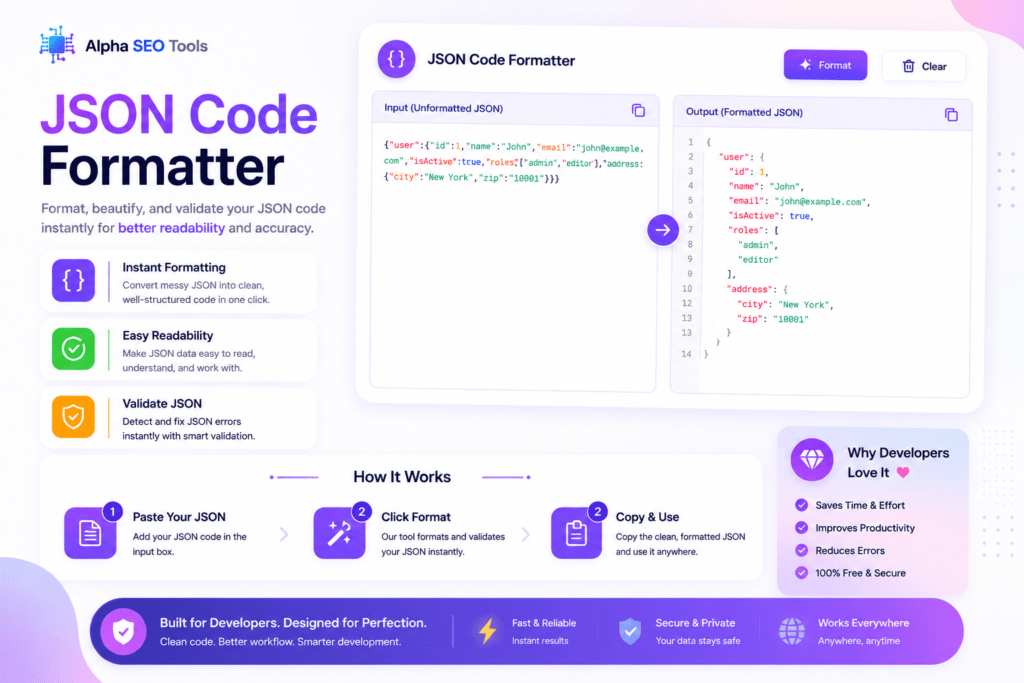
Raw JSON is not meant to be read by humans. When it comes straight from an API response, a config file, or a data export, it typically arrives as a single dense line with no spacing, no structure visible to the eye, and no clear sense of where one object ends and another begins. A JSON Code Formatter exists specifically to fix that. It takes whatever JSON you throw at it and outputs a clean, indented, human-readable version in seconds.
Alpha SEO Tools’ JSON Code Formatter goes beyond simple indentation. It validates your JSON to confirm it is syntactically correct, shows you structural statistics about the data, lets you sort keys alphabetically, and gives you both a download option and a one-click copy when the output is ready. This guide walks through every control on the tool so you get the most out of it every time you use it.
What JSON Is and Why Formatting Makes Such a Difference
JSON stands for JavaScript Object Notation. It is a lightweight, text-based data format that uses key-value pairs and nested structures to represent data. Per the official JSON specification at json.org, JSON is built from two universal structures: a collection of key-value pairs (objects, wrapped in curly braces) and ordered lists of values (arrays, wrapped in square brackets). Every modern API, web application, and configuration system uses JSON in some form.
The problem is that JSON does not require any whitespace or newlines to be valid. Minified JSON, which strips all of that out, is perfectly correct but essentially unreadable to a human being. Consider the difference between seeing three hundred characters of dense text on a single line versus seeing the same data structured with each key on its own line, indented to reflect the nesting level. The information is identical, but the experience of reading and debugging it is completely different.
A JSON Code Formatter handles this transformation automatically. It parses your raw data and re-outputs it with consistent indentation so you can actually see the structure: which keys belong to which object, where arrays start and end, and how deeply nested any given piece of data sits. This is not cosmetic work. When you are debugging an API integration or reviewing a configuration file, being able to read the structure at a glance saves time and prevents errors. That is the core job of a JSON Code Formatter.
A Full Tour of the Tool Interface
The Alpha SEO Tools JSON Code Formatter is divided into three areas: the input area on the left, the format controls across the top, and the output area on the right. Every button serves a specific purpose. The table below covers every control on the tool so nothing is unclear.
| Button / Control | Location | What It Does |
| Load Sample | Input area | Loads pre-built demo JSON so you can test the tool immediately without having any JSON ready |
| ▶ Format | Main action | Parses your raw or minified JSON and outputs it with clean, readable indentation |
| Indent: 2 | Format option | Uses 2 spaces per indentation level, common in JavaScript and web development projects |
| Indent: 4 | Format option | Uses 4 spaces per indentation level, the standard in Python and many enterprise codebases |
| Indent: Tab | Format option | Uses actual tab characters for indentation, preferred by some editors and coding standards |
| Sort Keys | Format option | Sorts every object key alphabetically at every level. This makes large JSON easier to scan and compare |
| Minify | Output option | Strips all whitespace and newlines to produce the most compact possible JSON string |
| Split view | View mode | Shows input and output side by side so you can compare the raw version against the formatted result |
| Output only | View mode | Hides the input panel and shows only the formatted output for a cleaner reading experience |
| Copy | Output action | Copies the complete formatted JSON to your clipboard in one click |
| Download | Output action | Saves the formatted JSON as a .json file directly to your device |
| Keys stat | Stats bar | Shows the total number of keys across the entire JSON structure |
| Size stat | Stats bar | Shows the data size of the formatted JSON output |
| Depth stat | Stats bar | Shows how many levels deep the nesting goes, which is useful for spotting overly complex structures |
| Type stat | Stats bar | Shows whether the root element is a JSON object or a JSON array |
That is the full tool. Nothing is hidden behind a subscription and nothing requires you to create an account. Every feature in that table is available the moment the page loads.
How to Use the JSON Code Formatter: Step by Step
Step 1: Get Your JSON Into the Input Area
Open the JSON Code Formatter and paste your JSON directly into the large input area on the left, which is labelled Input Paste. You can paste anything from a single short object to a large multi-nested API response. If you want to try the tool without having any JSON ready, click the Load Sample button above the input area and a working demo JSON object is loaded automatically. This is especially useful for first-time users who want to see the output behaviour before working with their own data.
Step 2: Choose Your Indentation Style
Before clicking Format, choose your preferred indentation from the three options: 2, 4, or Tab. These options sit directly above the Format button.
- 2 spaces is the most common choice for web development work, JavaScript projects, and anything where file size matters slightly. Most modern front-end style guides default to two-space indentation.
- 4 spaces is the standard in Python, many backend frameworks, and enterprise environments. If you are working in a codebase that uses four-space indentation throughout, this keeps your JSON consistent with the rest of the project.
- Tab uses actual tab characters instead of spaces. Some editors and coding standards require tabs for accessibility reasons, as they allow users to configure their own visual tab width. If your project uses tabs, this option keeps the JSON consistent.
Step 3: Decide Whether to Sort Keys
The Sort Keys toggle is optional but worth understanding. When enabled, the JSON Code Formatter sorts every key in every object alphabetically before outputting the result. This applies at every nesting level throughout the entire structure.
Sorted keys are particularly useful when you are comparing two versions of the same JSON structure, such as a before and after a data migration, or when working with configuration files where you want to quickly scan all available keys. Unsorted keys preserve the original order of the data, which matters when the order carries semantic meaning or when you want to diff the output against the original source without reordering changes making the diff noisy.
Step 4: Click Format
Click the Format button (labelled with a play icon) to process the input. The JSON Code Formatter parses your text, validates it, and outputs the formatted result in the right-hand panel labelled Formatted Output. If your JSON contains a syntax error, such as a missing comma, an unclosed bracket, or an unquoted key, the tool catches this at the parse stage and flags the issue rather than outputting malformed data. This validation step is one of the most practically useful parts of a JSON Code Formatter and something that saves developers significant debugging time.
Step 5: Read the Stats Bar
Below the output panel, the tool displays four statistics about your formatted JSON. Keys shows the total count of keys across all objects in the structure. Size shows the data size of the output. Depth shows the maximum nesting level, which tells you how many levels deep the most nested value sits. Type shows whether the root element of your JSON is an object or an array. These figures are generated from the parsed structure, not from counting characters in raw text, which makes them accurate regardless of how the input was originally formatted.
The Depth figure is particularly worth paying attention to when working with API responses that have been built up over time. Deeply nested JSON structures, typically anything beyond five or six levels, can become difficult to work with in code and often indicate that a data model has grown more complex than originally intended. Seeing that number at a glance is a fast way to assess whether a structure needs simplification.
Step 6: Choose Your View Mode
The view mode controls sit above the output panel and offer two options: Split and Output only. Split is the default and shows both input and output side by side. This is useful when you want to compare the original raw JSON against the formatted version or when you are making edits and reformatting iteratively. Output only hides the input panel and gives the formatted result the full panel width, which makes it easier to read long or deeply nested structures without the input area in the way.
Step 7: Copy or Download the Result
Once the output looks right, use the Copy button to send it to your clipboard or the Download button to save it as a .json file. The Copy button is the faster option for pasting directly into a code editor, a config file, or a development environment. The Download button is the right choice when you need to save the formatted JSON as a standalone file, share it with a colleague, or commit it to a repository.
The Minify Function and When to Use It
The Minify button works in the opposite direction to Format. Where the JSON Code Formatter adds whitespace and newlines to make a structure readable, Minify removes all of that and compresses the JSON into the most compact valid string possible. Every space, every newline, and every tab is stripped out.
Minified JSON is appropriate in specific production contexts. When sending JSON as part of an HTTP request body or API payload, smaller size means less data transferred over the network. When embedding JSON into a script tag in an HTML page, minified JSON reduces page weight. When storing JSON in a database field or cache layer, compact representation saves storage. The formatted version is for humans working with the data. The minified version is for machines transmitting or storing it.
A common workflow is to format the JSON first using the JSON Code Formatter to read and verify the structure, make any necessary edits, and then use Minify to produce the compact version for use in production. Both operations are available without leaving the tool.
Real Situations Where This Tool Gets Used
* Debugging an API Response
When testing an API endpoint in a browser, a REST client, or a terminal, the response JSON often arrives minified or with inconsistent formatting. Pasting it into the JSON Code Formatter immediately gives you a readable view of the response structure, confirms which fields are present, and shows you the exact nesting hierarchy. The Keys and Depth statistics give you a quick structural summary without having to manually count levels.
* Reviewing Configuration Files
Many applications store settings in JSON format, including package.json in Node.js projects, tsconfig.json in TypeScript projects, and appsettings.json in .NET applications. When these files become difficult to read after repeated edits, running them through a JSON Code Formatter restores consistent indentation and makes it straightforward to audit the settings they contain. The Sort Keys option is particularly useful here for bringing configuration keys into alphabetical order for easier review.
* Preparing Data for Documentation
When writing technical documentation, API references, or README files that include JSON examples, formatted and readable JSON is far more useful to the reader than a raw single-line blob. Using the JSON Code Formatter to prepare these examples ensures consistent indentation style throughout the documentation and saves the time of formatting them manually in a text editor.
* Comparing Two Versions of a JSON Structure
When a JSON structure has changed between versions and you want to understand what specifically changed, formatting both versions with the JSON Code Formatter and enabling Sort Keys on both produces outputs with consistent key ordering. This makes a side-by-side or diff comparison significantly cleaner because the only differences visible are actual data changes rather than ordering or whitespace differences.
Common Questions About JSON Formatting (FAQ’s)
Does the JSON Code Formatter validate my JSON or just format it?
Both. When you click Format, the tool first parses your input using the browser’s built-in JSON parser. If the input is not valid JSON, the parse fails and the tool catches the error before attempting to output anything. This means a successful format operation also confirms that your JSON is syntactically valid. If there is a syntax error, the tool reports it rather than producing incorrect output.
Is my data sent to a server when I use this tool?
No. The JSON Code Formatter runs entirely in your browser. All parsing, formatting, sorting, and minification is handled by JavaScript running locally on your device. Nothing you paste into the tool is transmitted to any server or stored anywhere. This makes it safe to use with sensitive data including API keys embedded in config files, internal data structures, and proprietary system outputs.
What is the difference between Sort Keys and the default output?
By default, the JSON Code Formatter preserves the original key order from your input. JSON objects are technically unordered according to the specification, but in practice most parsers preserve insertion order. When Sort Keys is enabled, every key at every level of the output is sorted alphabetically before the result is rendered. This changes the visual order of keys but does not change the data itself. The sorted version is easier to scan and compare but may not reflect the order the data was originally structured in.
Can I format very large JSON files in this tool?
The tool handles JSON in the browser, which means its practical limit is determined by your device’s available memory rather than a server-imposed restriction. For very large JSON files, performance depends on your browser and hardware. Most JSON payloads encountered in typical API work and development tasks, even complex deeply nested ones, process without any noticeable delay. For files that are several megabytes or larger, a dedicated desktop tool may be more appropriate.
What does the Type stat tell me?
The Type stat shows whether the root element of your JSON is an object or an array. A JSON object starts with a curly brace and contains key-value pairs. A JSON array starts with a square bracket and contains an ordered list of values. Some APIs return a single object as the root. Others return an array of objects. Knowing the root type at a glance helps you write the correct parsing code when consuming the data in an application.
Other Developer and SEO Tools on the Same Platform
Alpha SEO Tools houses several other utilities that connect naturally to the same technical workflow. If you are working on a web project and need to validate how your HTML renders before it goes live, the live HTML viewer gives you a real-time render in the browser. For CSS work, the CSS gradient generator produces clean production-ready gradient code visually. For content work that goes alongside a development project, the URL slug generator ensures every new page gets a clean, SEO-correct URL from the start. And if you are managing domain records for the projects you are building, the domain WHOIS and expiry tracker keeps registration details visible without needing to log into a registrar dashboard. All free, all available without an account.
From Unreadable to Instantly Clear
Unformatted JSON is one of the most common small annoyances in development work. It is not a crisis but it is friction, and friction adds up. A JSON Code Formatter removes it completely. Paste your data, choose your indent style, click Format, and you have a clean, validated, readable structure in seconds.
Alpha SEO Tools’ JSON Code Formatter handles everything in your browser with no account required, no data shared, and no limit on how often you use it. The Load Sample button is there if you want to explore the tool before committing your own data. The Sort Keys option is there when you need alphabetical order. The Minify button is there when you need to go back to compact format for production. Everything the tool does is visible on the page, and every feature does exactly what it says.
Your JSON is messy. Fix it in one click.
Specification and Standards Referenced
The JSON format and its syntax rules are defined in two documents. json.org maintains the original specification introduced by Douglas Crockford, covering the full syntax of objects, arrays, strings, numbers, booleans, and null values. RFC 8259, published by the Internet Engineering Task Force, is the formal internet standard for JSON and is the specification that browser implementations of JSON.parse and JSON.stringify conform to. Both documents are freely available and are the correct references for understanding any edge-case JSON behaviour you encounter.
alphaseotools.com | Article: JSON Code Formatter | Sources: json.org, RFC 8259 (IETF)