

How to Fix ‘Outlook 365 keeps Crashing’ Issue in Windows 11?
Table of Contents
Still, your Outlook 365 keeps crashing on Windows 11, and your emails are stuck? You don’t need to worry from now on; you will get the best resolution here.
Imagine you open Outlook 365 on Windows 11, and it crashes again. Your emails will disappear, which leads to work disruption and frustration. It is not just disturbing, but it can also cost time and deadlines.
Many people have problems with Outlook 365 crashing. It may stop responding, crash while you’re not using it, or crash when you open it. Outlook 365 crashing on Windows 11 is common but can disrupt your work. Most Outlook crashes are easy to fix; you don’t need advanced tech skills.
In this article, we’ll walk through clear, effective solutions to fix Outlook 365 keeps crashing issue in Windows 11 effectively. Let’s get started!!!
| Note: These solutions not only work for Exchange Online but also are applicable for Outlook 2019, Outlook 2016, Outlook 2013, and Microsoft Outlook 2010 effectively. |
100% Reliable Ways to Fix Outlook 365 Keeps Crashing’ Issue
Sometimes, you don’t need to perform any stepwise methods; just a few tips can help you out. But in some cases, you need to follow a stepwise procedure to resolve the Outlook 365 keeps crashing issue in Windows 11. Here we’ve shared both pro tips and stepwise methods, respectively, for you:
Pro Tips to Fix Outlook 365 Keeps Crashing Issue in Windows 11
Before performing any method, you need to follow the suggestions below to troubleshoot Outlook 365 keeps crashing issue in Windows 11:
- When Outlook crashes, don’t reopen it. Close it and try to fix the issue.
- Check the internet connection and ensure it is stable and speedy.
- Run an antivirus scan to remove the virus/malware from the system.
- Delete Outlook temporary files/cache to escape Outlook 365 crashing issue.
- Disable Hardware Graphics Acceleration in Outlook.
- Close another application running in the background.
- Restart your system and then try to open Outlook in Safe Mode.
These tips work in most cases, but not in severe conditions. Now, follow the step-by-step guide to fix Outlook 365 crashing on Windows 11.
Methods to Fix Outlook 365 keeps crashing issue in Windows 11
Here are some effective methods that will help you resolve Outlook 365 keeps crashing issue in Windows 11. Go with each method accordingly:
Method 1. Update Outlook Application
When your Outlook is crashing, you can’t update it directly. Since Outlook is part of Microsoft Office 365, you can update it through another Office app or the Microsoft Store:
A. Update via Another Office Application
If your other Office application, like Word or Excel, is opening perfectly, then follow the steps below to update Outlook:
- Open any Office app like Word or Excel and tap File > Account.
- Under Product Information, click Update Options > Update Now.
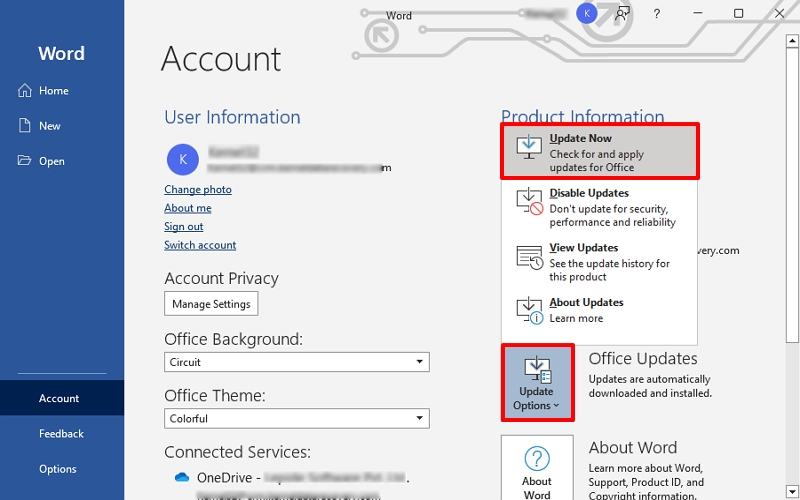
This updates the whole Office suite, including Outlook. After completion, try to open Outlook.
B. Use Microsoft Store (if you installed Outlook from there)
- Open the Microsoft Store and click Library.
- Select Get updates.
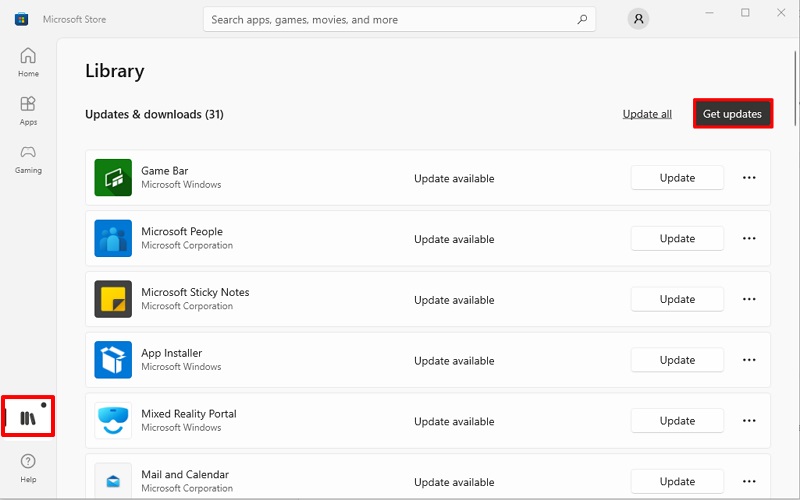
Wait for completion. Outlook (Microsoft 365) will update automatically.
Method 2. Repair Microsoft Office
If you fail to update Outlook, then you need to repair the Microsoft Office suite to fix Outlook 365 keeps crashing issue in Windows 11. Follow the steps below:
- Open Control Panel, go to Programs and Features.
- In the list of installed programs, right-click Microsoft Office (or Microsoft 365) and tap on Change.
- Choose Quick Repair or Online Repair accordingly.
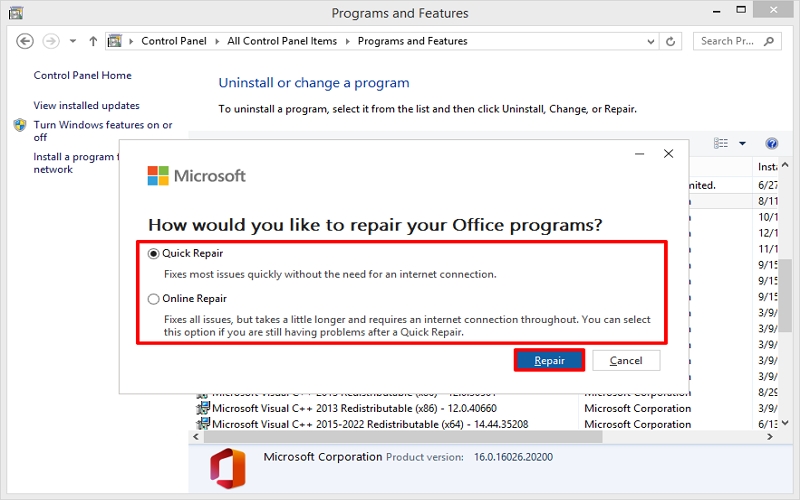
It will fix bugs and make Outlook ready to use.
Method 3. Create a New Outlook Profile
Sometimes, a corrupted profile can cause an Outlook crash. So, create a new Outlook profile by following the steps below:
- Open Control Panel, click Mail, and tap Show Profiles.
- Click Add, name the new profile, and click Next.
- Wait till the configuration completes and click Finish.
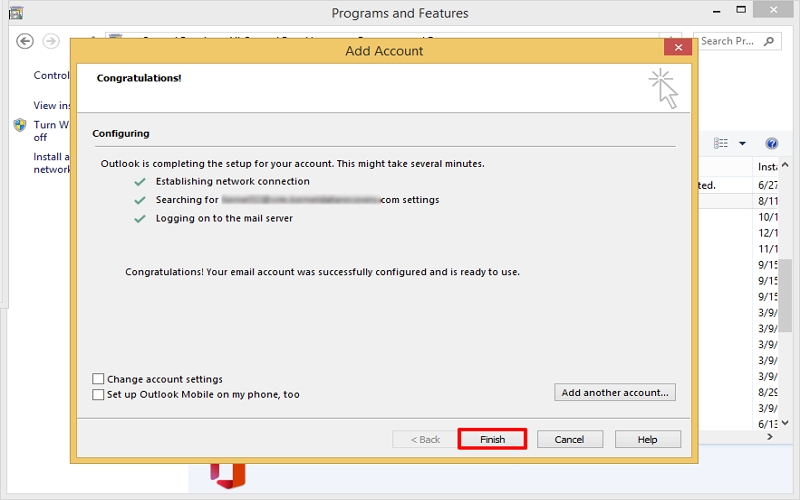
A new profile will be created in Outlook. Now try to open Outlook again.
Method 4. Repair OST File using ScanPST.exe
OST files often get corrupted from sudden crashes, large size, sync problems, bad sectors, malware, or incomplete updates. Corrupt files can cause Outlook to crash. Here’s how to fix OST files using the ScanPST.exe tool:
| Note: Locate OST file by navigating to Control Panel > Mail > Data Files. Choose your OST file and tap Open File Location. Or Go to C:\Users\UserName\AppData\Local\Microsoft\Outlook |
- Close Outlook, go to C:\Program Files\Microsoft Office\root\Office16.
- Look for ScanPST.exe and double-click to open it.
- Click Browse and select the OST file you want to repair. Click Start.
- It will scan and display that OST file. If errors are found, click Repair.
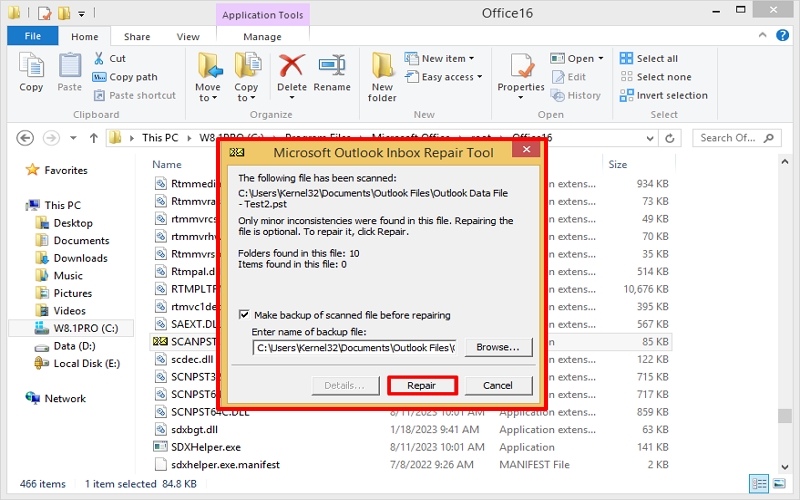
Wait until the process finishes and try to open Outlook.
The above solutions are enough to fix the Outlook crashing issue in Windows 11. But if the OST file is badly damaged or corrupted, it may not work. However, ScanPST.exe can fix minor OST problems, but it may fail with very large or severely corrupted files.
What to Do When ScanPST.exe Fails to Repair OST Files?
ScanPST fails when the OST file is oversized, severely corrupted, or if the Outlook installation is incomplete or broken. However, you don’t need to worry when manual methods and tips don’t help you, because a professional OST to PST converter toolcan still help you.
The OST to PST converter tool easily handles large/oversized, corrupted/damaged/orphaned OST files with ease. They also help to convert OST to PST in a few easy steps. After converting it into PST, you can import the data into Outlook again to continue your workflow.
Some advanced OST to PST converters come with multiple file saving options, like PST, MBOX, EML, MSG, etc. They also help with direct migration to various cloud and email servers.
You can select and convert specific emails and deleted emails too, with the help of their smart filter. Whether you’re a novice or tech expert, you can use these tools well. Also, you can try their free trial version to open and convert the OST file with a limited number of items.
Conclusion
Hence, Outlook 365 keeps Crashing on Windows 11 is a common issue, and it is easy to fix. In most cases, simple steps like restarting, updating, or disabling add-ins can fix it effectively. If the issue comes from a corrupted OST file, then native tools like ScanPST.exe or a powerful third-party OST to PST converter are needed. We recommend using an OST to PST converter tool if your OST data is important and you don’t want to risk losing it.


