
Data Storage Converter
A free tool by alphaseotools.com
Convert between Bytes, KB, MB, GB, TB, and PB instantly. Understand file sizes and storage limits with precision.
| Unit | Value |
|---|---|
| Enter a value and click Convert to see results | |
Data Storage Converter: Finally, a Tool That Speaks Bytes, Not Bullshit
Let’s not pretend you’re here for a casual read. You typed data storage converter into a search engine because something somewhere went wrong. Maybe your MacBook is screaming that its startup disk is full while you’ve only saved a handful of Logic Pro projects. Perhaps your company’s cloud architect just told you to provision 500 GiB of block storage by noon, and you have no clue if that’s the same as the 500 GB you budgeted for. Or you’re simply a human being who bought a “2 TB” external drive, plugged it in, and watched your operating system smirk and show 1.81 TB. Whatever mini-crisis landed you here, one thing is certain: you need a data storage converter that doesn’t just spit out numbers but actually explains what’s happening behind the curtain.
Not all converters are created equal. Some give you a sterile number field and a dropdown. Others assume you already understand the difference between a mebibyte and a megabyte (a distinction that has haunted storage buyers for three decades). The data storage converter we’re putting under the spotlight today—built by the folks at Alpha SEO Tools—is designed to make you feel like a storage genius without having to decode a cryptic man page. It handles bytes, kilobytes, megabytes, gigabytes, terabytes, and petabytes. It converts instantly. It doesn’t force you to choose between base-10 and base-2; it just gives you the truth you need. And after you’ve read this guide, you won’t just know how to use it—you’ll understand storage units better than most IT technicians who still say “kibble-bytes” with a straight face.
So buckle up. This is going to be a sassy, no-holds-barred journey into the world of digital storage units, the lies manufacturers tell you, and the simple tool that cuts through all the noise. By the end, you’ll have a data storage converter bookmarked, a few new party tricks about petabyte-scale data, and the unshakeable confidence to convert bytes to gigabytes in your sleep.
What Is a Data Storage Converter, and Why Should You Care?
A data storage converter is exactly what it sounds like: a utility that transforms a quantity of digital information from one unit of measurement to another. That’s the elevator pitch. The real pitch is this: without a reliable data storage converter, you’re one arithmetic slip away from ordering too little cloud storage, deleting a critical backup, or trying to explain to your client that 500 GB of footage won’t fit on a 465 GiB SSD. This tool bridges the gap between what your brain thinks a gigabyte is and what a computer actually uses.
Our data storage converter works with Bytes (B), Kilobytes (KB), Megabytes (MB), Gigabytes (GB), Terabytes (TB), and Petabytes (PB). That’s the full spectrum that 99.9% of the population will ever touch. If you’re working with exabytes or zettabytes, you probably already have a team of engineers who built their own converter. For the rest of us, this tool is the sweet spot. You enter a value, pick the starting unit—say, 500 MB—and click Convert. Instantly, the table below populates with equivalent values in every unit, from Bytes all the way up to Petabytes. No page refresh. No confusing toggles. Just a clean, readable table that even your grandmother could interpret, assuming she once asked you why her 1 TB backup drive is “only 931 GB.”
What sets a great data storage converter apart from the junk you’ll find on page three of Google? Two things: accuracy and clarity. The tool we’re featuring uses the industry-standard binary base of 1024 for conversions. That means 1 KB = 1024 Bytes, 1 MB = 1024 KB, and so on. This is the system your operating system, your RAM, and every microprocessor on the planet actually use. Some converters default to decimal (base-1000) because that’s what hard drive manufacturers put on the box. If a data storage converter mixes those two systems without telling you, it’s useless. Ours is transparent. It uses binary conversion consistently, which means the numbers it shows match what your computer reports. No more, no less.
You might be thinking, “I can just Google ‘500 MB in GB’ and get an answer.” Sure. Google’s built-in calculators will give you 0.5 GB. But that answer is based on decimal conversion. Your computer would tell you 0.49 GB. That tiny difference adds up to gigabytes of missing space when you’re dealing with large volumes. A dedicated data storage converter gives you the precise binary values and shows you all the other units simultaneously, so you can plan a migration, compare cloud tiers, or just satisfy your curiosity without opening ten browser tabs. It’s a deceptively powerful tool for something so simple to use.
Why Everyone Needs a Data Storage Converter (Even If You’re Not a Tech Nerd)
The need for a data storage converter sneaks up on you. You’re living your life, and suddenly you’re faced with a decision that involves bytes. It might be choosing a microSD card for a security camera. It might be uploading a video that’s 12 GB in size and your internet provider limits you to 1 TB of data per month. It might be that your website’s backup plugin is telling you the database is 204800 KB, and your hosting panel measures disk usage in MB. Without a data storage converter, you’re stuck doing mental math that, let’s be real, you haven’t done since high school.
Consider these everyday warriors who absolutely need a data storage converter:
- Photographers and videographers: A single RAW photo can be 45 MB; a 4K video at 60 fps eats 750 MB per minute. Precision in converting MB to GB determines whether a shoot fits on a card.
- System administrators and DevOps engineers: They constantly convert between GB and GiB because cloud providers mix units. A converter prevents provisioning 100 GiB when you meant 100 GB.
- Gamers: Modern games demand 150 GB or more. A console’s “825 GB” drive shows only 667 GB free. Converting between decimal marketing numbers and binary reality avoids the “storage full” meltdown.
- Students and office workers: Email attachment limits (25 MB), flash drive capacities, and submission portal size caps all require quick conversions.
- Home NAS owners: Managing terabytes of media and backups means constantly converting TB to GB to understand actual usable space.
Even casual users bump into this. When you’re cleaning up your phone’s storage, it might say “WhatsApp: 5.8 GB.” You want to archive those chats to your computer, which has 20 GB free. Is that enough? A data storage converter confirms it in seconds. Or you’re sharing a Google Drive folder that’s capped at 15 GB, and your team keeps hitting the limit. You need to know how many MB of images you can still upload. The converter makes it instant. It’s a universal problem-solver disguised as a simple web tool.
The Two Storage Systems: Why Your Drive Is Smaller Than Advertised
We have to talk about the elephant in the server room: the two different numbering systems for storage. Understanding this is the single most important thing you can do to stop feeling cheated every time you buy a new hard drive. A data storage converter can’t fix the marketing departments, but it can make you fully aware of the game.
Decimal units (base-10) are what storage manufacturers use. In this system, 1 kilobyte = 1,000 bytes. 1 megabyte = 1,000,000 bytes. 1 gigabyte = 1,000,000,000 bytes. This makes for nice, round numbers on the packaging. A “1 TB” drive sounds better than a “0.909 TiB” drive. This system aligns with the metric system humans use for weight and distance. It’s simple, clean, and entirely misleading when you plug the device into a computer.
Binary units (base-2) are what computers actually use. Processors work in binary, and memory addresses are powers of two. So naturally, 1 kilobyte of RAM is 2^10 bytes = 1,024 bytes. 1 megabyte of RAM is 1,024² = 1,048,576 bytes. This has been the standard since the dawn of computing. The problem is that hard drive manufacturers decided to stick with decimal, while operating systems report space using binary calculations but still label them with metric prefixes (KB, MB, GB). That’s where the disconnect happens.
When you plug a “2 TB” drive into your PC, the manufacturer sent you 2,000,000,000,000 bytes. Your operating system divides that number by 1,024 repeatedly and arrives at about 1.82 “TB.” The drive hasn’t lost any capacity. You got exactly the number of bytes printed on the box. But the unit your OS displays is actually tebibytes (TiB), not terabytes (TB). This confusion has existed since the 1980s, and the International Electrotechnical Commission (IEC) tried to fix it in 1998 by introducing binary prefixes: kibi (Ki), mebi (Mi), gibi (Gi), tebi (Ti), etc. Unfortunately, almost nobody uses them in consumer software, so the confusion persists. A well-built data storage converter acknowledges this duality and gives you the conversion that reflects reality on your screen, not just what’s printed on a label.
How Our Data Storage Converter Handles the Binary/Decimal Chaos
The data storage converter we’re featuring sticks to binary conversion. When you enter a value in megabytes, it multiplies by 1,024 to get kilobytes, then again to get bytes, and divides by 1,024 going upward to gigabytes, terabytes, and petabytes. This means the values you see in the results table correspond to what Windows, macOS, and Linux will show you. If you’re trying to reconcile a drive’s labeled capacity with its formatted capacity, you can use this converter to quickly estimate the real usable space.
For example, if you have a 1 TB (decimal) external SSD, that’s 1,000,000,000,000 bytes. To find out how many binary gigabytes that is, you’d divide by 1,073,741,824 (which is 1024³). The answer is about 931.32 GB. Our data storage converter can show you that math instantly if you input 1,000,000,000,000 bytes directly. Or you can use a little mental shortcut: just take the labeled decimal capacity and multiply by 0.931 to get an approximate GiB number. But why do mental math when you have a data storage converter that does it for you?
The tool’s simplicity is its strength. You don’t toggle between binary and decimal; it always uses binary. That’s because in 99% of practical situations—allocating server storage, checking disk space, estimating file sizes—the binary interpretation is what matters. If you absolutely need decimal conversions for marketing comparisons, you can still use the tool to convert from binary bytes upward and then multiply by the appropriate decimal factor. But for the average user wrestling with Windows’ “This PC” screen, binary is king.
Breaking Down Every Unit: From Bytes to Petabytes and Beyond
Let’s give each unit in this data storage converter its moment in the spotlight. Understanding what these terms mean not only makes you better at using the tool but also makes you the person at the party who can casually mention that a petabyte is a million gigabytes. Use this power wisely.
- Byte (B): The atomic unit of digital storage. Typically holds one character of text. Your .txt file of a haiku might be 50 bytes. It’s the building block for everything else. When you enter 1 into the converter and select Bytes, the table shows 0.001 KB, 0.000001 MB, and so on. It’s a humbling reminder of how tiny a single byte is.
- Kilobyte (KB): 1,024 bytes. About half a page of text. A low-res icon image might be 5-10 KB. In the 90s, we measured floppy disks in KB (remember 720 KB disks?). Today, even a single email is often larger than a kilobyte. The converter treats 1 KB as 1,024 B, so you’re getting the binary truth.
- Megabyte (MB): 1,024 KB, or 1,048,576 bytes. This is where things get tangible. An MP3 song is about 3-5 MB. A high-res JPEG photo is 2-10 MB. A minute of standard-definition video is roughly 10-20 MB. When you’re cleaning out your phone’s “Downloads” folder, you’re mostly dealing in MB. The data storage converter lives in this range for most people.
- Gigabyte (GB): 1,024 MB. The standard unit for consumer storage. Your phone has 128 GB, 256 GB, or 512 GB. Your laptop SSD is 256 GB to 1 TB. A full-length HD movie in decent quality is about 2-4 GB. A modern video game like Call of Duty can be over 150 GB. When you’re shopping for devices, GB is the unit you negotiate. Yet because of binary/decimal confusion, a “256 GB” phone actually gives you about 238 GiB of usable space. The data storage converter can show you exactly how many MB are in that 238 GiB, which is useful for calculating how many apps you can install.
- Terabyte (TB): 1,024 GB. This is the heavyweight champion of home NAS devices and external drives. A 4 TB drive can hold roughly 1,000 DVD-quality movies or 250,000 high-res photos. When you start dealing with terabytes, you care a lot about that missing capacity. A 4 TB label means you’ll see about 3.63 TB in your OS. That missing 370 GB is bigger than an entire older hard drive. This is where the data storage converter becomes critical for capacity planning.
- Petabyte (PB): 1,024 TB. You probably don’t own a petabyte drive, but you’ve used services that do. Netflix, YouTube, and Facebook store hundreds of petabytes of content. One petabyte can hold about 500 billion pages of text or 13 years of HD video. Data centers measure bandwidth and storage in PB. Even though you may never fill one, understanding PB helps you contextualize the scale of cloud providers. The data storage converter includes PB so that you can see how your 2 TB home NAS is just a drop in the ocean.
The converter doesn’t stop there conceptually, but the tool’s dropdown goes up to PB. Beyond that lie exabytes (EB), zettabytes (ZB), and yottabytes (YB). By the time you need those, you’re probably working for the NSA or CERN, and you have bigger problems than a web-based data storage converter can solve.
Step-by-Step: Using the Data Storage Converter Like a Pro
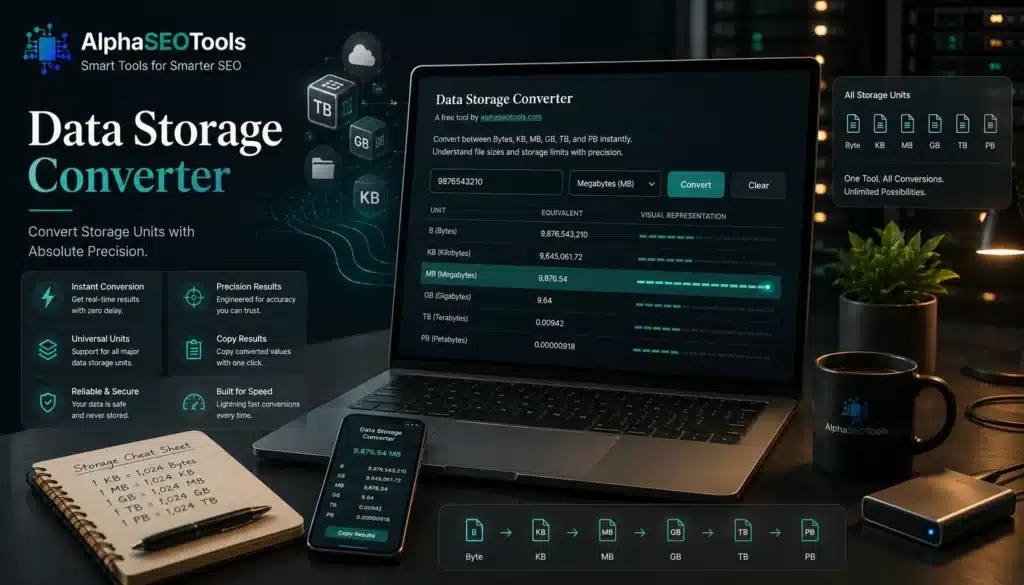
You’ve read this far. You’re convinced this tool is useful. Let’s walk through exactly how to use the data storage converter on the page. We promise, it’s so easy you’ll feel insulted by the simplicity, but there are a couple of neat features you might not notice on your own.
- Enter a Value: The input field is front and center. Type any positive number. You can use decimals. Want to convert 0.5 GB? Type 0.5. Need to convert 1,024 bytes? Type 1024. The field is straightforward, and the placeholder text says “Enter a value, e.g. 500.” That’s your cue. Don’t type words; the converter will politely tell you to enter a valid number if you try anything cheeky.
- Choose Your Starting Unit: The dropdown next to the input box lets you select what unit that number represents. It defaults to Megabytes (MB), because that’s the most common mid-range unit. You can switch to Bytes, Kilobytes, Gigabytes, Terabytes, or Petabytes. The selection you make determines the anchor point for all other conversions. If you select GB and enter 1, the table will show you how many MB, KB, B, TB, and PB are in 1 GB (binary).
- Click Convert: This triggers the magic. A table appears below with two columns: Unit and Value. The row corresponding to your selected unit is highlighted, so you always know your reference point. The values are formatted with up to six decimal places for precision. If you enter a very large number, you might see exponential notation for extreme values, but for everyday use, the numbers are clean and readable.
- Read and Use the Results: Let’s say you entered 256 and selected GB. The table will display Bytes (B): 274,877,906,944, Kilobytes (KB): 268,435,456, Megabytes (MB): 262,144, Gigabytes (GB): 256 (active row), Terabytes (TB): 0.25, Petabytes (PB): 0.000244. Now you know that a 256 GB SSD contains exactly 268,435,456 KB. If a file is 5,000 KB, you can quickly see that it’s about 0.00477 GB. This kind of cross-referencing is invaluable when your operating system mixes units in different views.
- Clear If Needed: The Clear button resets the input field and the results table, ready for a new query. It’s a small quality-of-life feature, but it saves you from manually highlighting and deleting the old number. The button even says “Cleared!” for a moment, just to acknowledge your tidy habits.
Pro tip: you can also hit the Enter key on your keyboard after typing a number to trigger the conversion. No need to move your mouse to the Convert button. It’s a small touch that shows the developers thought about usability.
The entire data storage converter tool lives in a compact widget that looks great on both desktop and mobile. Its aesthetic—dark background, gold accents, serif headings—makes conversion feel a bit like opening a fancy reference book. And beneath the surface, the JavaScript runs efficiently, so there’s no lag even with large numbers. If you’re comparing ten different storage scenarios, you can rapid-fire inputs without the page breaking a sweat.
Real-World Scenarios Where This Data Storage Converter Saves the Day
Let’s get specific, because abstract praise is boring. Here are situations where a data storage converter turns a headache into a high-five moment.
- The Photographer’s Memory Card Crisis: You’ve just shot 3,200 RAW images at 45 MB each. Your laptop’s internal storage has 180 GB free. Can you import the whole shoot without an external drive? Do the math: 3,200 × 45 MB = 144,000 MB. But your laptop reports space in GB. Open the data storage converter, select MB, enter 144,000, and see that equals exactly 140.625 GB. Yes, it fits with room to spare. Crisis averted.
- The Video Editor’s Archival Puzzle: You have 4 TB of raw footage from a documentary project. You need to archive it to a cloud cold storage service that charges per GB per month. The service lists pricing in GB, not TB. Using the converter, you find that 4 TB (binary) is 4,096 GB. Now you can accurately estimate your monthly bill instead of guessing.
- The Gamer’s SSD Upgrade: You want to install a new game that requires 175 GB of space. Your PS5’s internal SSD claims 825 GB total, but the system menu shows 667 GB free. Wait, how is that possible? Because the “825 GB” is likely decimal (the marketing number), and the actual usable space is much lower. The data storage converter helps you unpack the real numbers. If the actual usable space is 667 GiB, that’s 667 × 1,024³ bytes. The game needs 175 GB (likely decimal, since that’s how publishers measure). Convert 175 decimal GB to GiB: 175 × 0.9313 ≈ 163 GiB. Okay, it still fits. But now you understand why the numbers never add up.
- The Sysadmin’s LUN Provisioning: You’re configuring a storage array and the vendor requires you to enter the size in MB. You want a 2 TB LUN. Do you enter 2,000,000? Or 2,097,152? The binary answer: 2 TB × 1,024 × 1,024 = 2,097,152 MB. The data storage converter gives you that number instantly when you select TB and input 2. You paste it into the console. No fat-fingered mistakes that result in a 1.9 TB LUN.
- The Student’s Flash Drive Dilemma: You need to submit a project that’s 850 MB. Your professor says the submission portal accepts files up to 1 GB. Is 850 MB less than 1 GB? Yes, obviously. But what if the portal actually measures in GiB and the limit is 0.93 GiB? That’s 0.93 × 1,024 = 952 MB. Still fine. But when you’re down to the wire, having the data storage converter confirm that 850 MB is about 0.83 GB gives you confidence to hit submit.
These scenarios aren’t rare. They happen daily to millions of people. Most just cross their fingers. You now have a tool that eliminates the guesswork.
Binary vs Decimal Units: A Table That Ends the Argument Forever
Because a picture is worth a thousand bytes, here’s a comprehensive table that shows the relationship between decimal and binary units at common scales. Use this as a cheat sheet alongside the data storage converter.
| Decimal Unit (Marketing) | Exact Bytes (Decimal) | Closest Binary Equivalent | Actual Bytes (Binary) | Usable Space on a “1 TB” Label (Approx) |
| 1 Kilobyte (KB) | 1,000 bytes | 1 Kibibyte (KiB) | 1,024 bytes | N/A |
| 1 Megabyte (MB) | 1,000,000 bytes | 1 Mebibyte (MiB) | 1,048,576 bytes | N/A |
| 1 Gigabyte (GB) | 1,000,000,000 bytes | 1 Gibibyte (GiB) | 1,073,741,824 bytes | ~0.93 GB (binary) |
| 1 Terabyte (TB) | 1,000,000,000,000 bytes | 1 Tebibyte (TiB) | 1,099,511,627,776 bytes | ~0.91 TB (binary) |
| 1 Petabyte (PB) | 1,000,000,000,000,000 bytes | 1 Pebibyte (PiB) | 1,125,899,906,842,624 bytes | ~0.89 PB (binary) |
The takeaway? The larger the decimal unit, the larger the gap when measured in binary. This is why a “20 TB” enterprise drive ends up showing about 18.18 TB of actual space. Our data storage converter uses binary math, so when you enter 20 TB, it’s interpreting that as 20 tebibytes if you consider the label to be in binary, but if you know the drive is decimal, you’d need to enter the byte value instead. The tool gives you the power to convert from either perspective as long as you know the byte count.
Why Binary Conversion Is the Default (And Why That’s Good)
Some data storage converter tools offer a toggle between binary and decimal. That seems helpful until you realize that most people don’t know which mode they should be in. Our converter picks binary and stays there, for excellent reasons. First, binary is what computers and operating systems report. When you right-click a folder and choose “Properties” on Windows, the size shown is in binary kilobytes, megabytes, and gigabytes (even though it says KB, MB, GB). Second, when you’re managing actual files on actual drives, the binary unit is the one that determines whether a file fits. Third, cloud providers that bill in GB often actually provision GiB for RAM, so knowing the binary numbers prevents billing surprises.
That said, if you’re a marketer trying to understand how a 2 TB (decimal) drive will be displayed to consumers, you can use the data storage converter to get the binary number by finding the byte count of 2,000,000,000,000 bytes. The converter can handle that if you input 2000000000000 as bytes. It will output the binary GB, TB, etc. This flexibility means you can answer both “What does the box say?” and “What will the customer see?” with one tool.
How to Convert Manually (And Why You Shouldn’t Bother)
You can absolutely do storage conversions by hand. For binary conversion, multiply or divide by 1,024 repeatedly. To convert GB to MB, multiply by 1,024. To convert MB to KB, multiply by 1,024. It’s not hard, but it’s tedious and error-prone once you get into decimal places or very large numbers. A single mis-typed digit and your cloud provisioning script creates volumes that are 10% too small. The data storage converter eliminates that human error. It also shows you the cascading values across all units simultaneously, which is something manual calculation can’t do without writing out a full table. If you enjoy doing math on a whiteboard, be my guest. For the rest of us, there’s a button that says Convert, and it’s glorious.
The Design Philosophy Behind This Data Storage Converter
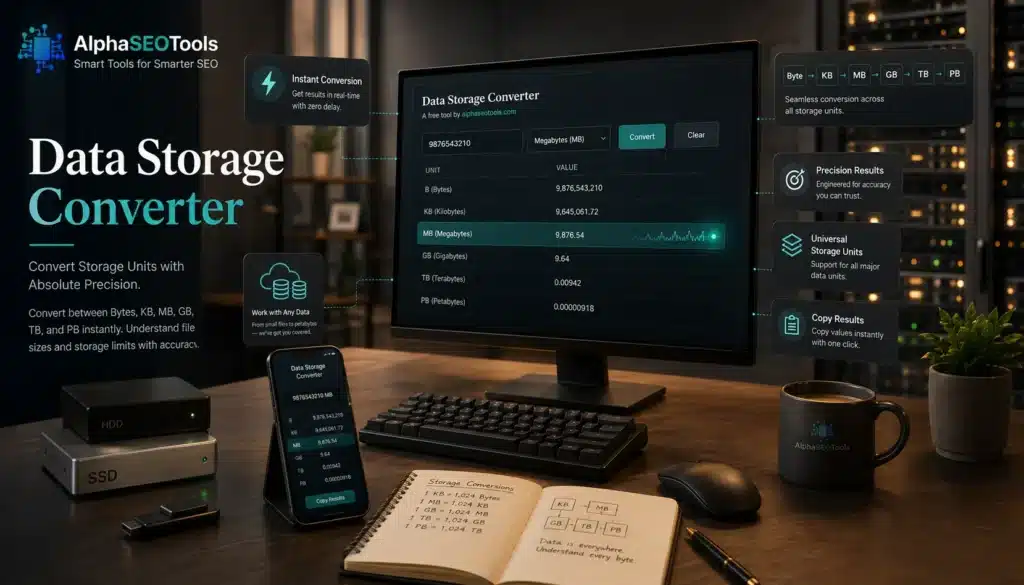
The data storage converter you’re reading about isn’t just a generic plugin. It was built with a clear philosophy: “No one should have to think about conversion logic; they should get answers.” The dark, elegant theme reduces eye strain during late-night provisioning sessions. The gold accents highlight interaction points. The results table is clear, with the active row highlighted to prevent you from losing your place. Even the Clear button has a micro-interaction feedback—it briefly says “Cleared!”—so you know the action was registered. These details might seem small, but they make the difference between a tool you use once and a tool you keep bookmarked.
The JavaScript powering the converter is efficient and runs client-side. That means your data never leaves your browser. If you’re converting sensitive storage capacity numbers for a corporate project, you don’t have to worry about some server logging your inputs. Privacy is baked in. The tool also works offline if you save the page, because all the logic is self-contained.
Integrating the Data Storage Converter Into Your Workflow
Once you start using a data storage converter regularly, it becomes second nature. Keep it pinned as a browser tab alongside your cloud console, your file explorer, and your procurement spreadsheet. When you’re ordering new drives, pull up the converter to calculate how many servers you’ll need to store a petabyte. When you’re sending a large attachment and your email client blocks you at 25 MB, use the converter to see how many KB that is, and split the file accordingly. When you’re explaining to a client why their 1 TB backup drive only holds 931 GB, the converter gives you the exact numbers to back up your explanation.
For content creators, the tool is a godsend. If you’re producing a podcast, you might export a 90-minute episode as a WAV file that’s 1 GB, and then convert it to MP3 at 128 kbps, which might be around 80 MB. The data storage converter helps you compare the size differential and decide whether the quality loss is worth the space savings. For developers, it’s useful when setting up databases: knowing that your planned 500 MB database can grow to 0.5 GB before hitting a cloud tier threshold can influence schema design.
Common Mistakes People Make When Converting Storage Units (And How the Tool Fixes Them)
Even smart people slip up. Here are the top blunders, all of which vanish when you use a proper data storage converter:
- Assuming 1,000 instead of 1,024: This decimal-thinking mistake turns a 2 GB to MB conversion into 2,000 MB instead of the correct 2,048 MB. That 48 MB gap could be an entire album of photos.
- Confusing MB with Mb: Megabyte (MB) measures storage; megabit (Mb) measures network speed. ISPs love this confusion because 100 Mbps sounds faster than 12.5 MB/s. This converter sticks to bytes, so you never mix them up.
- Forgetting file system overhead: Even after binary conversion, formatting eats a small percentage of space. The converter gives you the theoretical max, which is your starting point for planning.
- Relying on Google’s quick answer: Google’s calculator often uses decimal, giving you a clean 0.5 GB for 500 MB, while your OS sees 0.49 GB. The data storage converter provides the binary truth.
- Mixing up terabytes and tebibytes: Your OS reports in TiB but labels it TB. The converter helps you translate the advertised number to the one you’ll actually see.
FAQs: Everything You Still Wondered About This Data Storage Converter
What is a data storage converter used for?
A data storage converter converts digital storage units like bytes, KB, MB, GB, TB, and PB. It helps you understand file sizes, plan storage, and reconcile advertised drive capacity with usable space.
Does this data storage converter use binary or decimal?
It uses binary (base-1024) conversion. That means 1 KB = 1,024 bytes, 1 MB = 1,024 KB, and so on. This matches what your operating system reports.
Why does my 1 TB drive show 931 GB?
Manufacturers use decimal (1 TB = 1,000,000,000,000 bytes), but computers use binary (divide by 1,024 repeatedly). The result is about 931 GiB, which your OS labels as “GB.” The data storage converter can confirm that math.
Can I convert petabytes with this tool?
Yes. The converter supports up to Petabytes (PB). Enter a value and select PB to see equivalents in smaller units.
What’s the difference between a megabyte and a mebibyte?
A megabyte (MB) is typically 1,000,000 bytes in decimal or 1,048,576 bytes in binary. A mebibyte (MiB) always equals 1,048,576 bytes. This converter uses binary, so its “MB” means 1,048,576 bytes.
How accurate is the conversion?
Very accurate. It uses JavaScript’s Math.pow(1024, index) to calculate, and formats results to six decimal places. Suitable for enterprise planning.
Conclusion: Stop Guessing, Start Converting
You came here stressed about bytes. You’re leaving with a comprehensive understanding of why your storage never adds up, how to fix that confusion, and a data storage converter that does all the hard work. The digital world runs on these invisible units, and being able to convert them on demand is a low-key superpower. Whether you’re buying hardware, managing cloud resources, editing video, or just trying to fit one more game on your console, this tool eliminates the guesswork. It’s free, it’s private, it’s accurate, and it looks good doing it. Bookmark it. Share it. And next time someone asks “How many megabytes are in a terabyte?” you can answer in under a second, with complete confidence. Now go convert something.