

How to Disable Password for All Users Except Admins in WordPress? Simple Method
Table of Contents
Introduction
Running a membership site, a public author account, or a shared team portal comes with unique challenges. One of the biggest headaches is users changing passwords when they shouldn’t.
If you have a public “Author Account” or a specific employee setup where you (the Admin) want total control over credentials, you don’t want users changing their passwords or using the “Lost your password?” email link.
In this post, I will tell you how to completely disable password reset functionality for all users except Administrators. We will use a simple and strong PHP class snippet that hides the password fields in the dashboard and even removes the “Lost Password” text from the login screen.
We will install this using the Code Snippets plugin in WordPress, so you don’t need to edit any theme files.
Why Use This Code to Disable Password?
The code we are about to use is more advanced than a standard filter. It does three specific things:
- Hides Profile Fields: It removes the password change fields from the User Profile page for anyone who is not an Administrator.
- Blocks Reset Emails: It prevents the system from sending password reset emails to non-admins.
- Cleans the Interface: It actually removes the text “Lost your password?” from the WordPress login screen.
The Code Snippet
Here is the complete code. This uses a PHP Class structure to ensure it doesn’t conflict with other parts of your site.
Copy this code:codePHP
/*
 * Plugin Name: Disable Password Reset
 * Description: Disable password reset functionality. Only users with administrator role will be able to change passwords from inside admin area.
 * Version: 1.0
 * Author: AlphaSEOTools
 * Author URI: https://alphaseotools.com
 */

class Password_Reset_Removed
{

  function __construct()
  {
    add_filter( 'show_password_fields', array( $this, 'disable' ) );
    add_filter( 'allow_password_reset', array( $this, 'disable' ) );
    add_filter( 'gettext',              array( $this, 'remove' ) );
  }

  function disable()
  {
    if ( is_admin() ) {
      $userdata = wp_get_current_user();
      $user = new WP_User($userdata->ID);
      if ( !empty( $user->roles ) && is_array( $user->roles ) && $user->roles[0] == 'administrator' )
        return true;
    }
    return false;
  }

  function remove($text)
  {
    return str_replace( array('Lost your password?', 'Lost your password'), '', trim($text, '?') );
  }
}

$pass_reset_removed = new Password_Reset_Removed();
How to Install This Using Code Snippets
Safely adding code to WordPress is best done via a plugin. Here is how to do it step-by-step.
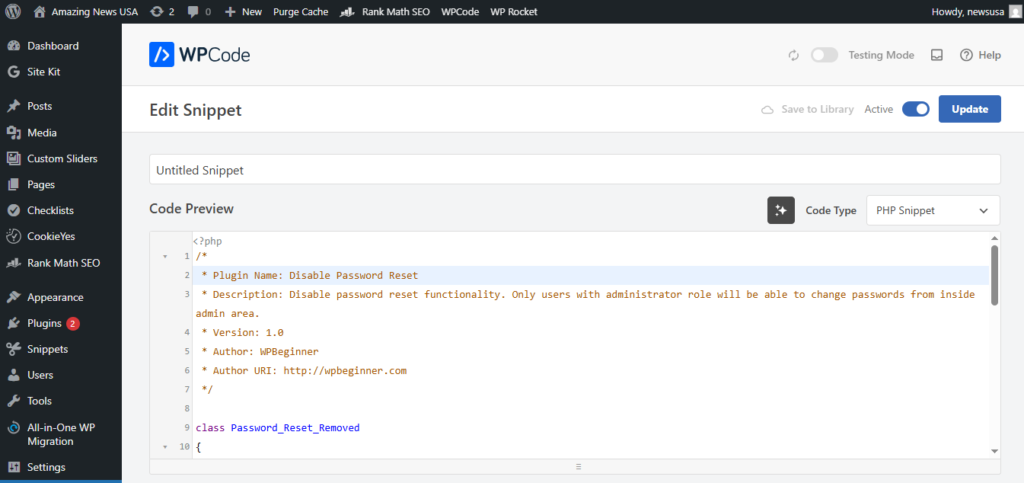
Step 1: Install the Code Snippets Plugin
If you haven’t already, go to Plugins > Add New, search for “Code Snippets”, and install/activate it.
Step 2: Add a New Snippet
- Go to Snippets > Add New in your dashboard sidebar.
- Title your snippet: “Disable Password Reset for Non-Admins”.
- Paste the code provided above into the Code text area.
Step 3: Activate
- Scroll down to the settings area below the code box.
- Ensure “Run snippet everywhere” is selected.
- Click Save Changes and Activate.
The Results: What Happens Now?
Once activated, the changes take immediate effect. Here is what different users will see:
1. The Administrator (You)
Nothing changes for you. Because the code checks for user->roles[0] == ‘administrator’, you will still see the password fields in your profile and can reset passwords for others.
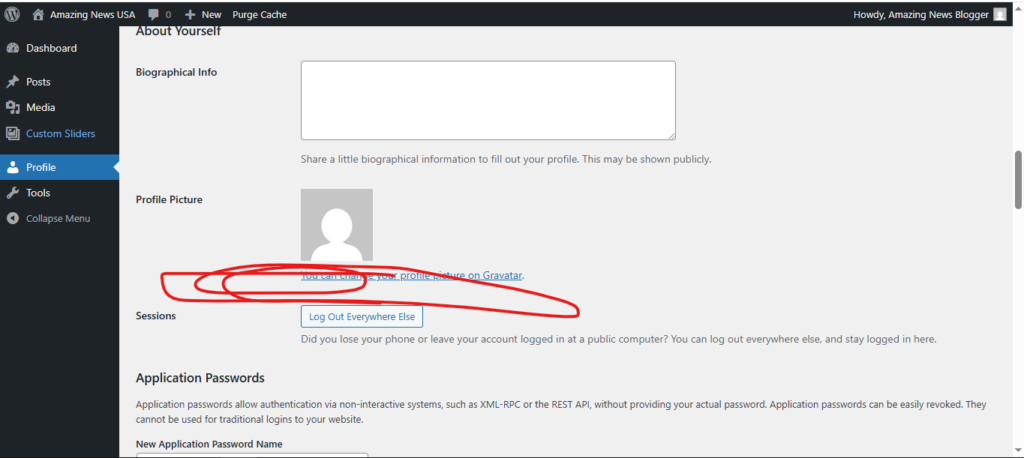
2. The Public / Author User
When a standard user (Subscriber, Author, Editor, etc.) logs in and goes to Profile, the “Account Management” section containing the password change fields will be completely missing.
3. The Login Screen
If a user goes to wp-login.php, the “Lost your password?” link text will be removed, preventing them from even attempting to click it.
![Image Placeholder: Comparison screenshot. Left: Standard login screen with ‘Lost your password?’. Right: Login screen with that text removed.]
Summary
This is a powerful way to secure your accounts. By stripping away the ability to reset credentials, you ensure that your demo accounts stay public and your internal accounts remain under IT control.
Note: Since this code removes the reset link text, make sure you (the Admin) remember your password! If you ever get locked out, you can simply access your site via FTP, find the Code Snippets folder, and disable the snippet manually.
Find more amazing blogs here at Alpha Blog


